
Did you know that bar members can be included in load distribution even when slightly offset from the surface, by using a Load Transfer Surface with a user-defined tolerance?
A Load transfer surface (LTS) is a special type of surface that converts surface loads into line loads and distributes them to structural members. This is particularly useful when surface loads, such as floor loads, snow loads, or wind loads, need to be transferred to supporting members.
In order to use the meteorological load generator function or our fluid-dynamics-based universal wind load generation tool, FALCON, the load transfer surfaces (LTS) on the structure must intersect, they must meet along a common edge. Otherwise, the results will not be accurate.
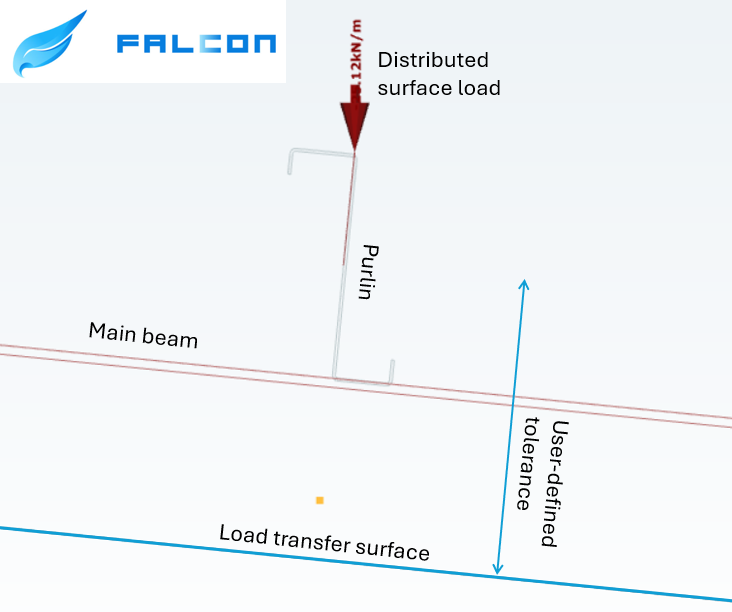
This creates a problem when, for example, the purlins take over the meteorological loads from the sheets or panels, but their planes do not intersect. In this case, the LTS is applied to the plane of the main structure, while the members assigned to it may lie within a specified distance from that plane.
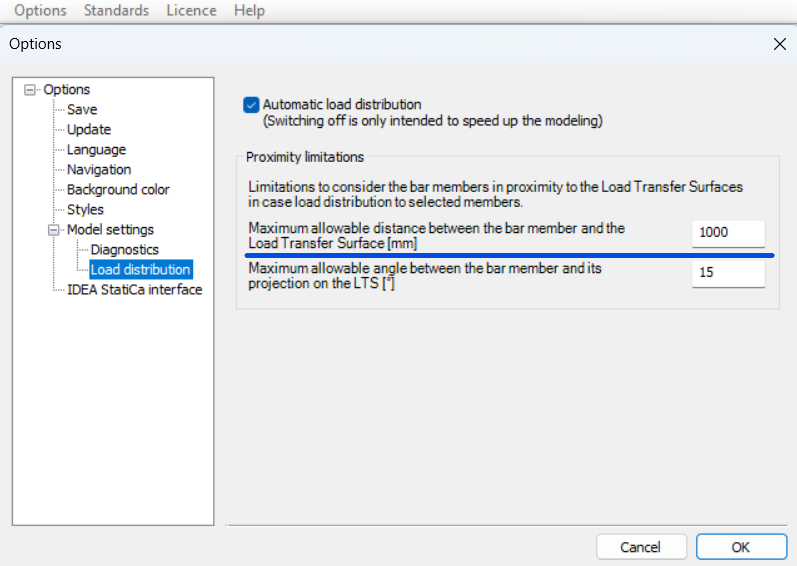
To define the tolerance for the load transfer surface, first go to the Options menu. There, you can set the maximum allowable distance between the bar members and the load transfer surface. In this example, all members that are less than 1000 mm from the surface can be assigned to the load transfer surface.
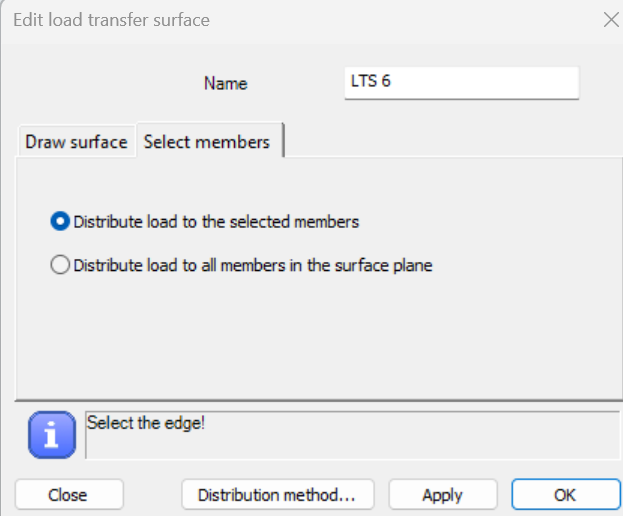
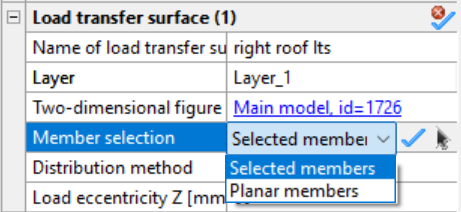
In order to be able to manually select the members attached to the load transfer surface, when defining it, make sure that in the Select members section you choose the Distribute load to the selected members option. If this option was not selected initially, you can set it later by selecting the surface and defining the member selection in the Object Properties window.
In the example model below, observe how the load distribution changes from the main beams (left side) to the tops of the purlins (right side) by introducing a user-defined tolerance and assigning the appropriate members to receive the load from the roof.
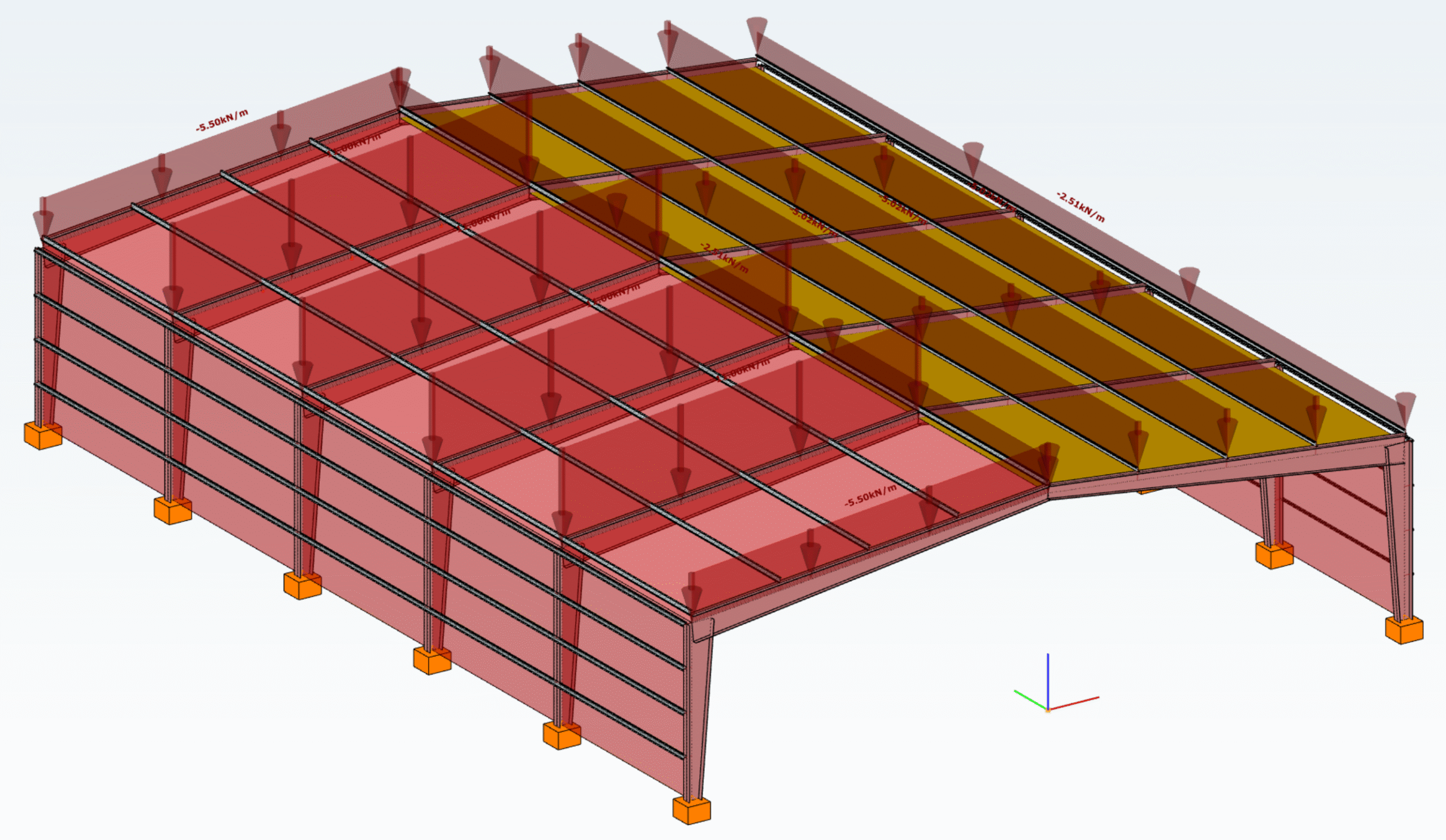
Download the example model and try it!
Download modelIf you haven’t tried Consteel yet, request a trial for free!
Try Consteel for freeDas neue Projekt Center vereint alle Funktionalitäten des Modell- und Benutzerkontenmanagements sowie den einfachen Zugriff auf personalisierte Informationen und Lernmaterialien.
Gewöhnlich zeigt traditionelle baustatische Software die Verformungen von Balken mit ihren Querschnitten auf der verformten Schwerachse. ConSteel 15 dagegen benutzt eine fortschrittliche Methode für Deformationsdarstellungen, die feiner und realistischer ist. Natürlich sind die numerischen Ergebnisse identisch, aber mit der verfeinerten Visualisierung kann das 3D-Verhalten der Balkenstruktur besser erkannt werden.
Introducing Pangolin, the new ConSteel integration with Grasshopper
In quick summary
- What is it? – Pangolin is a plugin to integrate structural modelling and analysis into your parametric Grasshopper definitions
- When? – Pangolin has been released together with ConSteel 14 but it’s in continuous development
- Where? – Download Pangolin from food4rhino.com or the Yak package manager of Rhino
What to know about Pangolin?
Pangolin is a Consteel plugin to integrate structural modelling and analysis into your parametric Grasshopper definitions. Using Pangolin you can create complex steel structural model definitions that include details such as beam haunches, highly configurable cold-formed sections with stiffeners, surface loads with load transfer surfaces distributing them onto beams, load combinations made up of loads in load cases, and so on. The created model then can be saved out as a file for later usage or sent directly over to Consteel by the connection component, for analysis with Consteel’s unique calculations.
How to work with Pangolin?
- Create your parametric model with Grasshopper
- Transform the geometry to structural elements, assign supports and loads with Pangolin
- Send to Consteel 14 and run the analysis
Basic workflow
1. Create your Grasshopper definition of the structure’s geometry
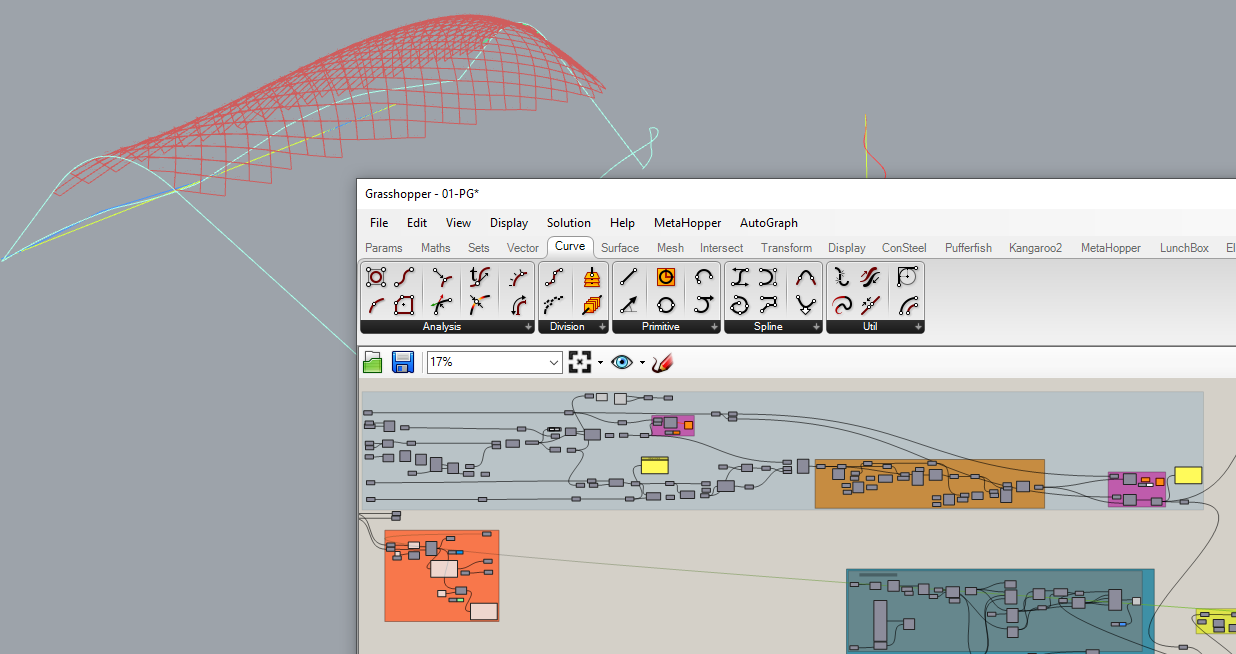
2. Define the complete structural model based on the geometry with Pangolin’s component
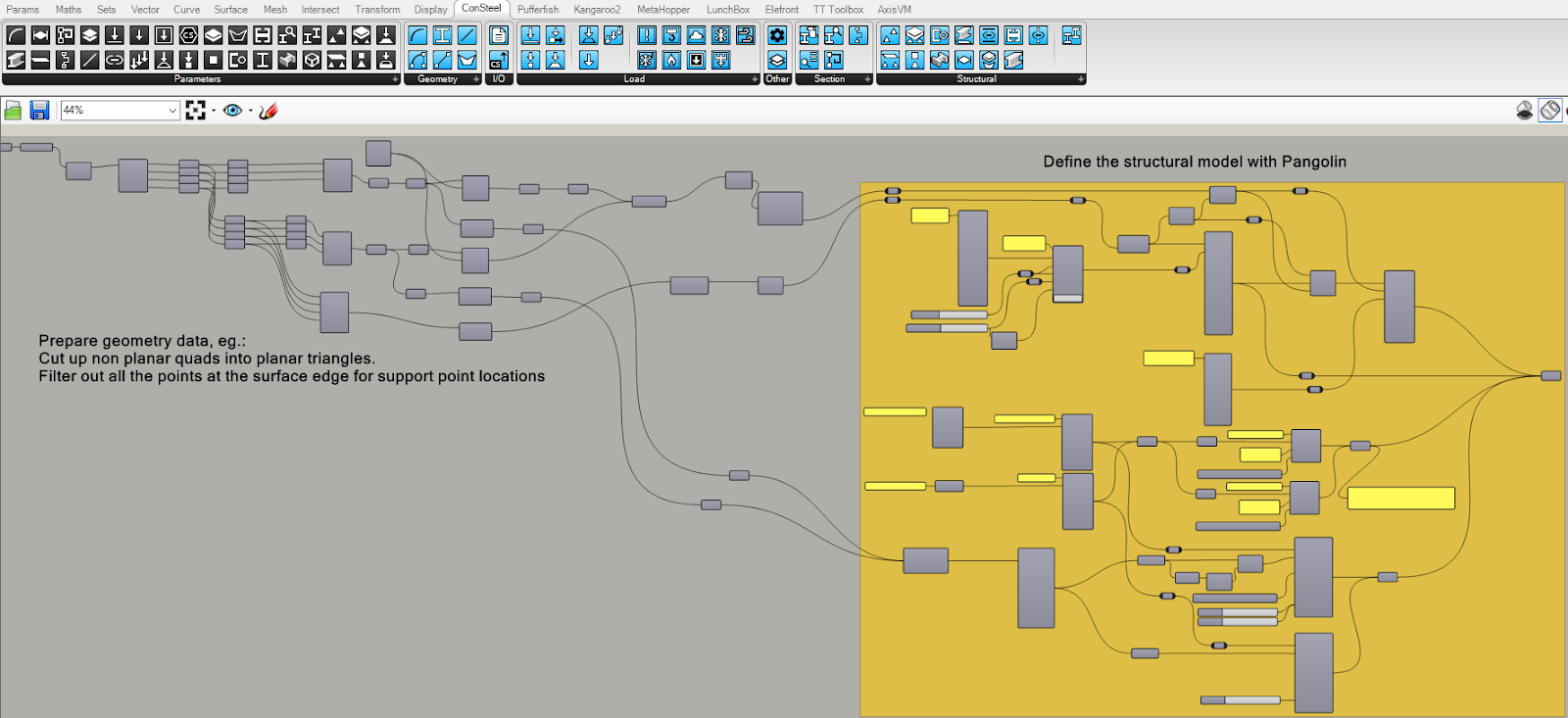
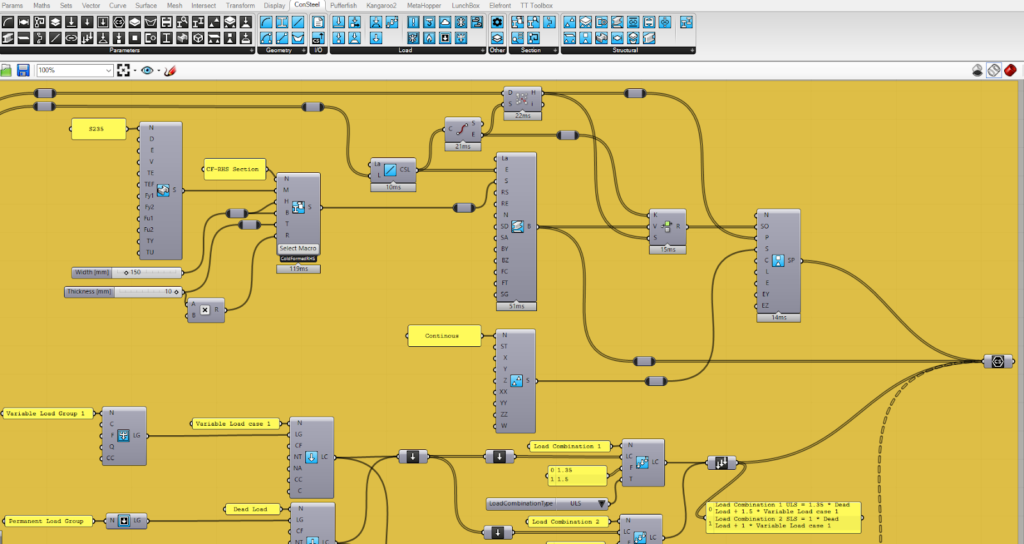
3. Preview the generated structural model real-time right in Rhino
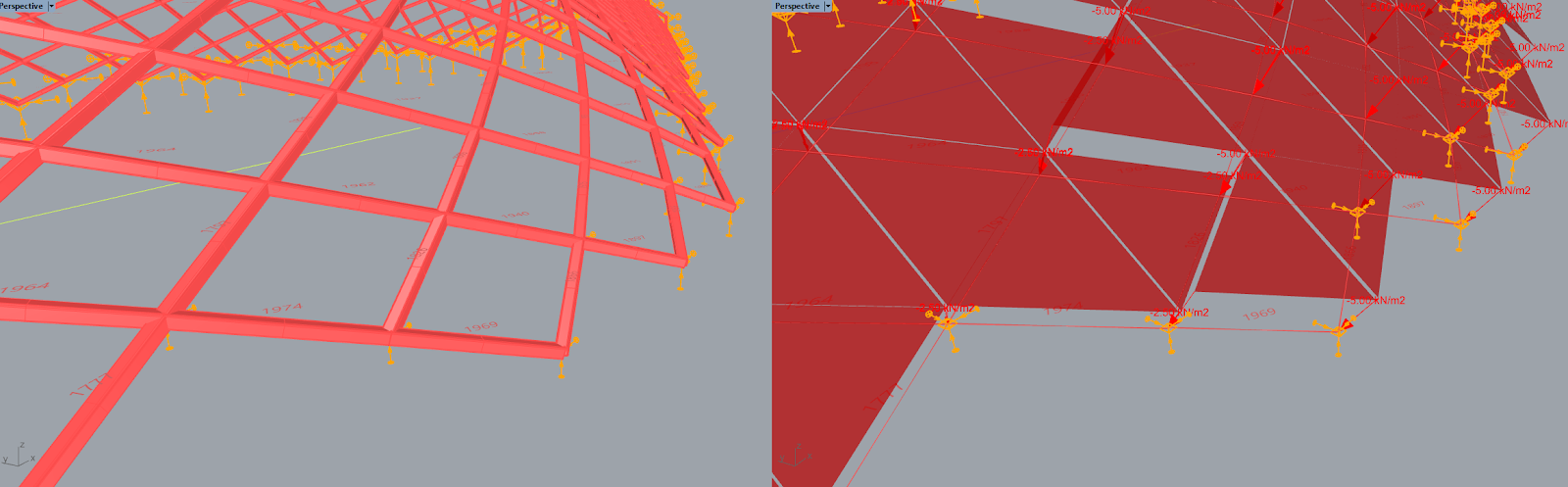
4. Send the generated structural model to ConSteel
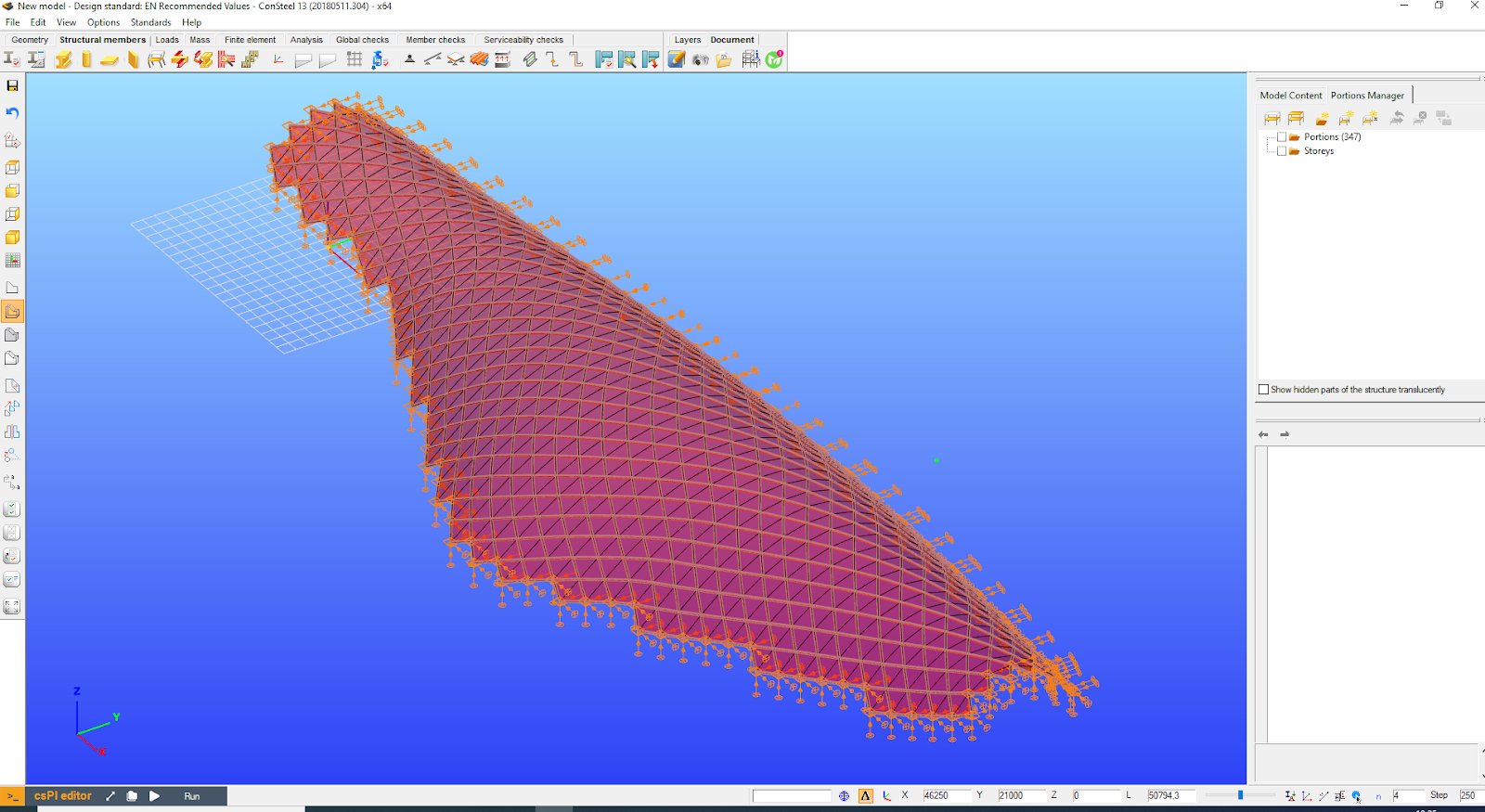
5. Analyse the model utilizing the full power of ConSteel’s unique analysis and design calculations
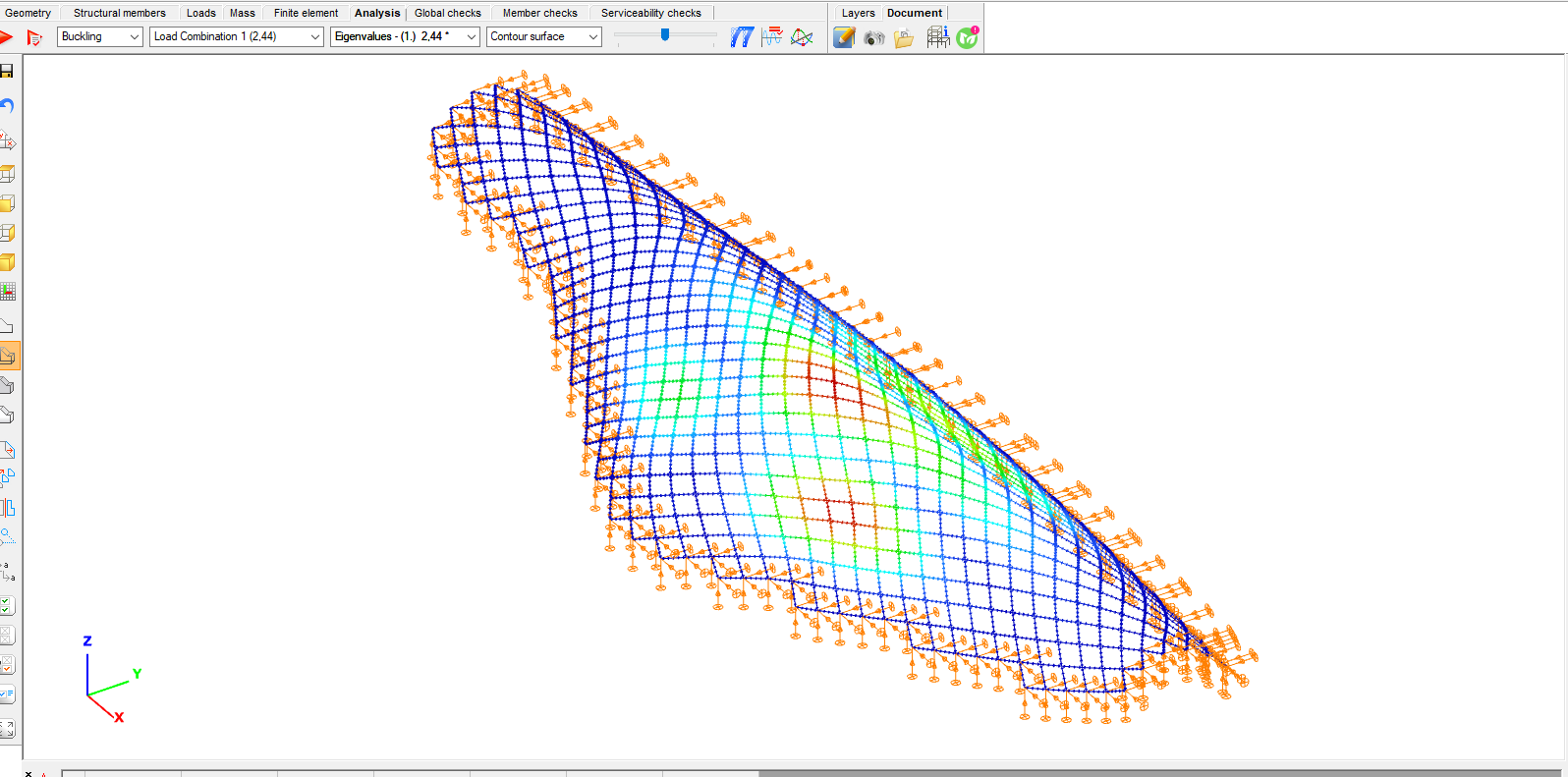
6. Change the Grasshopper model’s input parameters as needed, go to step 4. and check the parametric model again in a matter of seconds.